
How to Download and Set Up Telegram on Any Device: A Complete Guide
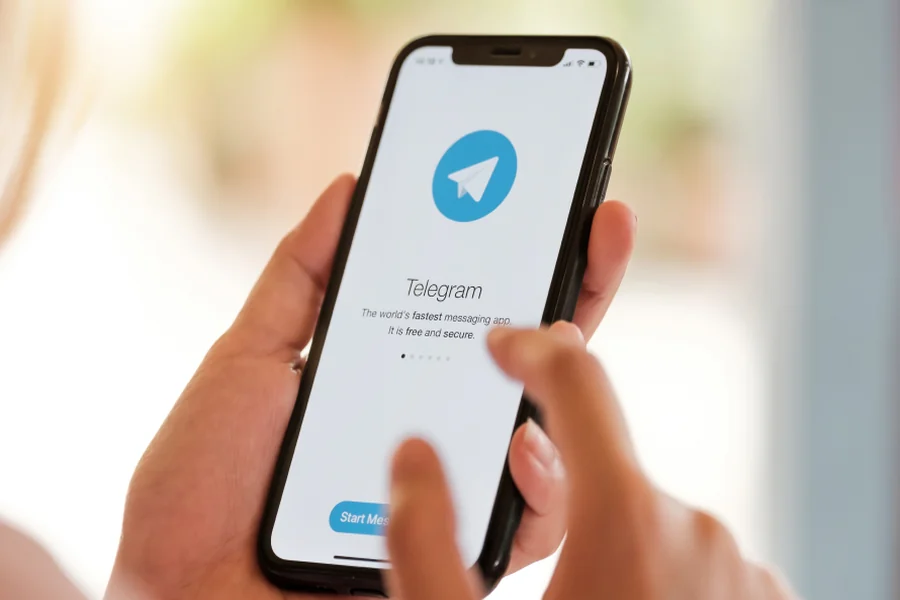
Telegram has grown from a niche messaging app into one of the most widely used communication platforms in the world. People choose it for its speed, its cloud-based design, and the level of control it gives users over privacy and customisation. Yet many newcomers still hesitate at the first step: downloading the right version, installing it correctly, and setting it up so that everything works smoothly across their phones, tablets, and computers.
This guide walks you through the full process from start to finish. You will learn how to install Telegram on iPhone, Android, Windows, macOS, Linux, and the web, how to create and secure your account, how to sync your chats across multiple devices, and how to configure the settings that matter most. Whether you are setting up Telegram for personal chats, a business team, or a public channel, the steps below will get you running in minutes.
Why Telegram Is Worth Installing
Before downloading anything, it helps to understand what makes Telegram different from other messaging apps. Knowing its strengths will also guide the choices you make during setup.
Cloud-Based Messaging
Unlike apps that store your messages only on your phone, Telegram keeps regular chats in its cloud. This means you can open the app on a new device, sign in, and find your entire chat history waiting for you. There is no need to transfer backups manually or worry about losing conversations when you switch phones.
Large File Sharing
Telegram allows users to send files of up to 2 GB each on free accounts, with higher limits for Premium subscribers. This is far more generous than most competing apps and makes Telegram a practical tool for sharing videos, design files, documents, and software packages without compression or third-party upload services.
Privacy Options and Secret Chats
Telegram offers an optional Secret Chat mode that uses end-to-end encryption, self-destruct timers, and device-only storage. Regular chats are encrypted between your device and Telegram’s servers, while Secret Chats go a step further by ensuring that only the two participating devices can read the messages.
Channels, Groups, and Bots
Telegram supports groups with very large member counts, public channels for broadcasting to unlimited audiences, and an open bot platform that allows automation, polls, reminders, and integrations with external services. These features make the app useful for communities, publishers, and businesses as well as individuals.
Choosing the Right Version of Telegram
Telegram publishes official apps for every major platform, and each one is designed for the device it runs on. Picking the right version avoids compatibility problems and makes the setup process faster.
Official Platforms Supported
Telegram is available on the following platforms:
- iOS for iPhone and iPad through the App Store
- Android through Google Play or as a direct APK download
- Windows as a desktop application or Microsoft Store app
- macOS through the Mac App Store or a direct download
- Linux as a 64-bit desktop build
- Web through a browser without any installation
All versions connect to the same account, so you can mix and match freely. Many users keep the mobile app for everyday messaging and the desktop app for work, file transfers, and typing longer messages.
Localised and Regional Versions
Telegram does not ship a separate app for each language, but it does support language packs that translate the entire interface. Users in Chinese-speaking regions often look for a localised build or a guide that explains how to apply a Chinese language pack after installation. If you are searching for a Chinese-language resource on where to find the app and how to install it, the telegram下载 guide covers the download process, language setup, and common installation notes in detail.
Whichever version you choose, always confirm that you are downloading from the official app store, the official Telegram website, or a trusted source. Unofficial copies can carry modified code, and installing them puts your account and personal data at risk.
How to Download and Install Telegram on Mobile
Mobile devices are where most people use Telegram first. The installation process is simple on both iOS and Android, but there are a few differences worth knowing.
Installing Telegram on iPhone and iPad
- Open the App Store on your device.
- Tap the search bar and type Telegram.
- Select the app published by Telegram FZ-LLC and tap Get.
- Authenticate with Face ID, Touch ID, or your Apple ID password.
- Once installed, tap Open to launch the app.
Telegram on iOS supports widgets, Siri shortcuts, and the share sheet, so you can send photos and links from other apps directly into a chat.
Installing Telegram on Android
There are two ways to install Telegram on Android: through Google Play or by downloading the APK file directly.
Through Google Play:
- Open the Google Play Store.
- Search for Telegram.
- Tap Install on the official listing.
- Open the app once installation completes.
Through a direct APK download:
- Visit the official Telegram website in your browser.
- Navigate to the Android download section and tap the APK download button.
- When prompted, allow your browser to install apps from unknown sources. This permission only needs to be granted once.
- Open the downloaded file and follow the installation prompts.
The APK method is useful on devices without Google services or in regions where the Play Store listing is unavailable. The direct download from Telegram’s site receives updates slightly ahead of the store version, which some users prefer.
Granting Permissions
On first launch, Telegram will ask for access to your contacts, notifications, and sometimes your camera and microphone. Contacts access lets Telegram show which of your friends already use the app. You can decline any permission and grant it later from your device settings if you change your mind.
How to Download and Install Telegram on Desktop
The desktop versions of Telegram offer a larger workspace, faster typing, and convenient drag-and-drop file sharing. They are ideal for anyone who spends most of the day at a computer.
Installing Telegram on Windows
- Visit the official Telegram download page or open the Microsoft Store.
- Download the installer for Windows.
- Run the installer and follow the setup wizard.
- Launch Telegram from the Start menu or desktop shortcut.
Telegram Desktop for Windows supports system notifications, keyboard shortcuts, and a portable mode that runs from a USB drive without installation.
Installing Telegram on macOS
- Open the Mac App Store and search for Telegram, or download the DMG file from the official website.
- Click Get in the App Store, or drag the app into your Applications folder if using the DMG.
- Open Telegram from Launchpad or the Applications folder.
The native macOS version integrates with the menu bar, supports dark mode, and syncs with your other devices instantly.
Installing Telegram on Linux
- Download the 64-bit Linux build from the official Telegram website.
- Extract the archive to a folder of your choice.
- Run the Telegram executable inside the extracted folder.
Telegram is also available through Snap and Flatpak packages on many Linux distributions, which simplifies updates and permissions management.
Using Telegram Web
If you cannot install software on a shared or work computer, Telegram Web runs entirely in your browser. Visit the official web address, scan the QR code with your mobile app, and your chats will appear within seconds. Telegram Web supports most core features, including file sharing, voice messages, and group management.
Creating and Verifying Your Telegram Account
With the app installed, the next step is creating your account. Telegram uses your phone number as the primary identifier, and the process takes less than two minutes.
Entering Your Phone Number
- Open Telegram and tap Start Messaging.
- Select your country code and enter your mobile number.
- Tap Next to request a verification code.
Telegram will send a code by SMS. If you already have Telegram active on another device, the code will arrive there as an in-app message instead.
Entering the Verification Code
Type the code into the field provided. If the SMS does not arrive within a minute or two, you can request a voice call that reads the code aloud. Users in some regions report delays with SMS delivery, so the call option is a reliable fallback.
Setting Your Name and Profile Photo
After verification, Telegram asks for your first name and an optional last name. These are what other users see in chats. You can also add a profile photo now or skip it and add one later from Settings.
Choosing a Username
A username is optional but highly recommended. It lets people contact you without knowing your phone number and creates a shareable link in the format t.me/yourusername. To set one, go to Settings, tap Username, and enter a name of at least five characters.
Setting Up Telegram on Multiple Devices
One of Telegram’s strongest features is seamless multi-device support. You can be signed in on your phone, tablet, laptop, and work computer at the same time, and every regular chat stays perfectly in sync.
Adding a New Device
- Install Telegram on the new device.
- Enter the same phone number you used originally.
- Approve the sign-in using the code sent to your existing device, or scan the QR code shown on the desktop app with your phone.
There is no limit on the number of active sessions for everyday use, and you can see all of them from Settings under Devices or Active Sessions.
Managing Active Sessions
From the Devices menu you can review every logged-in session, see its location and last activity, and terminate any session you do not recognise. Telegram also allows you to set an automatic timeout that logs out inactive sessions after a chosen period.
What Does and Does Not Sync
Regular cloud chats, media, contacts, and settings sync across all devices. Secret Chats are the exception: because they are tied to a specific device, they only appear on the device where they were started and cannot be accessed anywhere else.
Essential Settings to Configure After Installation
Telegram works well with default settings, but a few adjustments will significantly improve your privacy, security, and daily experience.
Enabling Two-Step Verification
Two-step verification adds a password on top of the SMS code, protecting your account even if someone gains access to your phone number.
- Open Settings and go to Privacy and Security.
- Tap Two-Step Verification.
- Create a strong password, set a hint, and add a recovery email.
Turning this on is one of the most effective ways to prevent account takeover.
Adjusting Privacy Settings
Under Privacy and Security you can control who sees your phone number, last seen status, profile photo, and forwarded messages. You can also restrict who can add you to groups and who can call you. Each option can be set to Everybody, My Contacts, or Nobody, with exceptions for specific people.
Configuring Notifications
Telegram lets you customise notifications per chat, mute groups for set periods, and choose different sounds for private messages and group messages. On desktop, you can also enable or disable message previews on the lock screen or notification banner.
Setting Up Chat Folders
If you belong to many groups and channels, chat folders keep your inbox organised. Go to Settings, select Chat Folders, and create folders such as Work, Family, or News. You can include or exclude specific chats or entire categories like channels, bots, and unread messages.
Changing the Interface Language
Telegram supports dozens of interface languages, and switching is straightforward.
Using Built-In Languages
- Open Settings and tap Language.
- Select your preferred language from the list.
The interface changes immediately without a restart.
Applying a Community Language Pack
For languages or dialects not in the default list, Telegram supports custom language packs created through its translation platform. These are often shared as links or files in dedicated Telegram groups. Tapping the link in the app applies the pack instantly, and you can switch back from the Language menu at any time.
Customising Your Telegram Experience
Once the essentials are in place, you can personalise how Telegram looks and feels.
Themes and Appearance
Telegram includes light, dark, and tinted themes, with options to change accent colours, chat backgrounds, message bubble shapes, and text size. Users can also create and share custom themes.
Stickers, Emoji, and Reactions
Telegram’s sticker ecosystem is one of the largest of any messaging app. You can add sticker packs from links, create your own through the official sticker bot, and use animated emoji and message reactions in chats.
Saved Messages
The Saved Messages chat acts as a personal cloud notebook. Send yourself links, documents, photos, and reminders, and access them from any device. Many users treat it as a lightweight file storage and note-taking tool.
Troubleshooting Common Installation and Setup Problems
Most Telegram setups go smoothly, but a few issues appear often enough to deserve a mention.
Verification Code Not Arriving
If the SMS code does not arrive, check that your number was entered correctly with the right country code, then request a voice call. If you are already signed in on another device, look for the code in Telegram itself rather than your SMS inbox.
App Not Available in Your App Store
In regions where the store listing is restricted, download the APK directly from the official website on Android, or use Telegram Web or the desktop app as an alternative.
Connection Problems
If Telegram shows a persistent “Connecting” status, try switching between Wi-Fi and mobile data, check that your firewall is not blocking the app, and update to the latest version. In regions with network restrictions, Telegram’s built-in proxy settings under Data and Storage allow you to connect through a SOCKS5 or MTProto proxy.
Updating Telegram
Keep the app updated to receive new features and security fixes. Mobile versions update through their app stores, while desktop versions can update automatically or prompt you when a new build is available.
Frequently Asked Questions
Is Telegram free to download and use?
Yes. Telegram is free on every platform with no advertising in private chats and no subscription required for core features. An optional Telegram Premium subscription unlocks extras such as larger file uploads, faster downloads, and additional customisation.
Can I use Telegram without a SIM card?
You need a phone number to register, but after setup you can use Telegram on devices without a SIM card, such as tablets and computers, as long as you can receive the verification code on your registered number or an existing session.
Will my messages transfer if I change phones?
Regular cloud chats transfer automatically when you sign in on a new device. Secret Chats are stored locally and will not transfer.
Can I have more than one Telegram account on the same device?
Yes. Telegram mobile apps support multiple accounts, and you can switch between them from the side menu without logging out.
Is Telegram safe to install from third-party websites?
Only install Telegram from official app stores, the official Telegram website, or trusted sources that clearly link to official builds. Modified versions from unknown sites can compromise your data.
Key Takeaways
- Telegram is available on iOS, Android, Windows, macOS, Linux, and the web, and all versions share one account.
- Download only from official app stores, the official website, or trusted guides that link to legitimate builds.
- Account creation requires a phone number and a verification code, and takes about two minutes.
- Multi-device sync works automatically for regular chats, while Secret Chats stay on one device.
- Enable two-step verification, review privacy settings, and organise chats into folders immediately after setup.
- Language packs, themes, and sticker packs let you tailor the app to your needs.
With the app installed and configured, you are ready to take advantage of everything Telegram offers, from fast private messaging and large file transfers to channels, groups, and bots that extend the platform far beyond simple chat.