How to Make an AI Short Film With Grok Imagine and Seedance 2.5
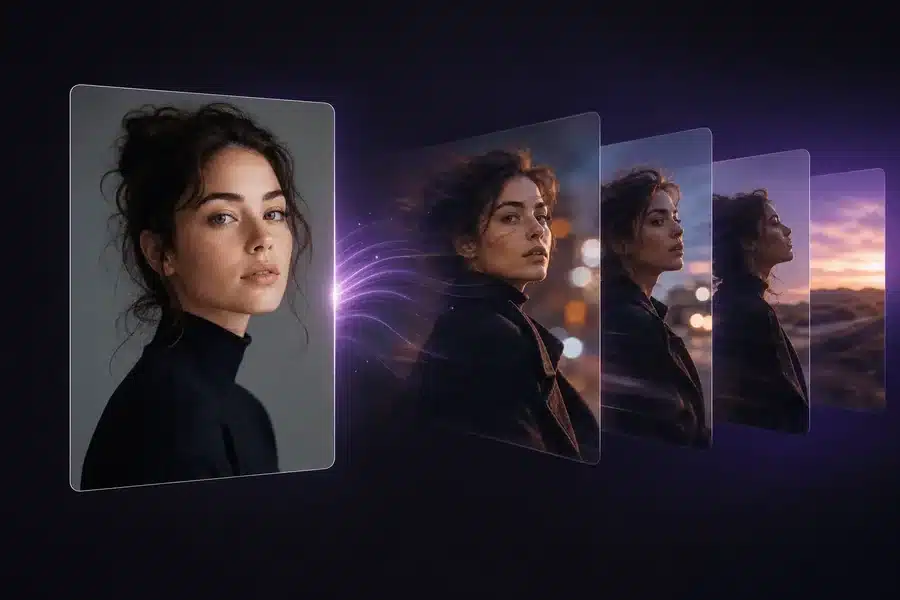
Short films used to require a crew, actors, locations and weeks of production. Today, a single storyteller with a clear idea can create a moving, atmospheric one-minute film from a laptop. AI video won’t replace filmmaking craft, since story, pacing and taste still matter most, but it removes many of the practical barriers that kept ideas on the page.
This guide walks through the whole process, from the first idea to the final edit, using two video models on Animx and one example film you can adapt to your own story.
Your Two Main Tools
Think of the two models as two different units on a film set.
Seedance 2.5 is your main camera unit. ByteDance’s flagship video model accepts up to nine reference images, called in the prompt as @Image1 to @Image9, keeps those references on-model for the whole take and lets you set a first frame and an optional last frame. It produces one continuous shot of up to 30 seconds at up to 1080p, in 16:9, 9:16 or 1:1, with ambience, effects and music generated in the same pass. That makes it ideal for scenes with your characters.
Grok Imagine is your mood unit. xAI’s video model is built for atmospheric, mood-led visuals with native synced audio, and Animx describes it as strongest on bioluminescence, fog, neon and dusk, with a lean toward dreamlike, slightly surreal compositions. Clips run from 1 to 15 seconds at 480p or 720p, which suits establishing shots, transitions and dream sequences.
Step 1: Start With a Simple Story
The best AI short films are simple. Aim for 60 to 120 seconds with one character, one goal and one turning point, and tell the story mostly through images rather than dialogue.
Our example film, The Night Garden, follows an elderly botanist who waits all year for her greenhouse of rare flowers to bloom. For one night, the flowers glow. By morning, the light is gone, but she has seen it again.
That’s the whole story: a setup, a moment of wonder and a quiet ending, which is exactly the right scale for a first AI film.
Step 2: Write a Shot List
Break the story into shots before you generate anything. For The Night Garden, a one-minute shot list might look like this:
| Shot | What we see | Model | Length |
|---|---|---|---|
| 1 | A greenhouse on a misty hill at dusk | Grok Imagine | About 8 seconds |
| 2 | The botanist checks the closed buds | Seedance 2.5 | About 12 seconds |
| 3 | She waits by the window as night falls | Seedance 2.5 | About 10 seconds |
| 4 | The flowers open and glow blue | Grok Imagine | 12 to 15 seconds |
| 5 | Her face, lit by the blue light | Seedance 2.5 | About 6 seconds |
| 6 | Dawn, the glow fades, the title appears | Seedance 2.5 | About 12 seconds |
A shot list keeps the story focused and stops you from spending credits on scenes the film doesn’t need.
Step 3: Design Your Character and Location
Consistency is what makes a story believable. Before generating any scenes, create a small set of reference images:
- The character: the same face, hairstyle and clothing in a few angles. You can create these with Animx’s image generator.
- The location: the greenhouse from outside and inside.
- Key props: anything that appears more than once, such as a teacup or a lamp.
In Seedance 2.5, attach these images and call them in your prompts, for example @Image1 for the botanist and @Image2 for the greenhouse. If you base a character on a real person, get their consent first.
Step 4: Generate the Story Scenes With Seedance 2.5
Write each prompt like a shot list of about 20 to 60 words, as Animx recommends: subject, action, setting, camera, light and sound.
Shot 2: “@Image1 walks slowly between rows of closed flower buds inside the greenhouse from @Image2 at dusk, checking each one, soft amber lamp light, medium tracking shot, quiet footsteps and distant crickets.”
Shot 3: “@Image1 sits by the greenhouse window with a cup of tea as night falls outside, her reflection in the glass, static medium shot, a ticking clock and soft wind against the panes.”
Shot 6: “Dawn light slowly fills the greenhouse as the glow fades from the flowers, @Image1 asleep in her chair with a gentle smile, slow pull-back, birdsong rising.” Add your title card as the last frame so the film ends exactly on it.
Two continuity tricks help scenes connect:
- Chain shots with frames. Use a still from the end of one clip as the first frame of the next, so movement and lighting carry over.
- Keep time of day consistent. Mention the same light, such as dusk, night or dawn, in every prompt for that part of the story.
Draft at 480p, then render the final scenes at 1080p in 16:9 for a cinematic look.
Step 5: Create Atmosphere and Wonder With Grok Imagine
Grok Imagine handles the moments where mood matters more than precision. Describe the scene, the mood and the sound, with clear cues for lighting, weather and color.
Shot 1: “A small glass greenhouse on a misty hill at dusk, the last orange light fading behind distant mountains, fog creeping across the grass, quiet and expectant mood, soft wind and evening birds.”
Shot 4: “Hundreds of flowers open at once and glow electric blue inside a dark greenhouse, bioluminescent petals pulsing softly, tiny glowing spores drifting upward, dreamlike and magical, a soft rising music cue.”
Grok Imagine can also animate a starting image, so you can turn one of your location references into a moving establishing shot. Draft at 480p and render the hero versions at 720p.
Step 6: Handle Dialogue the Smart Way
On-screen speech is one of the hardest parts of AI filmmaking. Grok Imagine can generate dialogue, but neither model lists lip-sync among its features, so plan around it:
- Tell the story visually. The Night Garden needs no spoken lines at all.
- Use voiceover. Record a short narration yourself and lay it over the images.
- Keep speakers off-screen or seen from behind when a line of dialogue is needed.
- Choose a dialogue model for lip-synced speech. Animx recommends Happy Horse for that job.
Step 7: Build the Soundscape
Both models generate audio together with the picture. Grok Imagine creates dialogue, ambient sound, foley and music cues, while Seedance 2.5 generates ambience, effects and music. Use that generated sound as the base layer, such as crickets, wind, footsteps and the ticking clock, then add a simple score and balance the levels in your editor. Consistent ambience across shots makes the film feel like one continuous world.
Step 8: Edit for Rhythm and Continuity
Assemble the clips in a video editor and shape the pacing:
- Let quiet moments breathe. Short films often gain power from stillness.
- Cut on movement, such as a turn of the head or a door opening, to hide transitions.
- Grade the color so all shots share the same palette.
- Match the resolution. Grok Imagine renders up to 720p and Seedance 2.5 up to 1080p, so finish at 720p or upscale the Grok Imagine shots with Animx’s AI video upscaler.
Budgeting Your Credits
Animx estimates about 554 credits for a 5-second 720p Seedance 2.5 clip, with longer and 1080p clips costing more, and the generator shows the exact cost of every clip, including Grok Imagine’s, before you click generate. Drafting at 480p, keeping the shot list tight and re-rendering only your final takes keeps the budget under control. Both models are included in every paid Animx plan, including Basic, Animx is free to start and paid plans include commercial rights.
Sharing Your Film Responsibly
- Disclose AI use where platforms, festivals or competitions require it.
- Don’t depict real people without their consent.
- Avoid copyrighted characters, logos and music you don’t have rights to.
- Credit any human collaborators, such as a narrator or composer.
Final Thoughts
An AI short film succeeds for the same reasons any short film does: a clear story, a strong mood and careful editing. Seedance 2.5 delivers consistent characters, precise frames and sharp 1080p scenes, while Grok Imagine adds fog, dusk and glowing, dreamlike moments. Start with a one-minute idea like The Night Garden, plan every shot and let each model do what it does best.